Digital Art Apps: Finding the Right Tools for Your Creativity
Digital art apps make it possible to sketch, paint, illustrate and design using a tablet, phone or computer. Whether you are experimenting with your first digital drawing or developing a professional portfolio, there is a wide range of tools to suit different styles, devices and budgets.
What can digital art apps do?
Many apps recreate familiar materials such as pencils, ink, watercolours and oils. Others focus on vector illustration, animation, photo editing or graphic design. Common features include customisable brushes, layers, selection tools, colour palettes and pressure sensitivity when used with a compatible stylus.
Layers are especially useful: they let you work on separate parts of an image without changing everything at once. You might use one layer for a sketch, another for line work and further layers for colour and shading. Most apps also offer undo and redo controls, making it easier to experiment.
Popular apps to explore
- Procreate is a popular choice for drawing and painting on iPad. It offers a broad range of brushes and tools in an interface designed for touch and stylus use.
- Krita is a free, open-source painting programme for desktop computers. It is particularly well suited to digital painting, concept art and illustration.
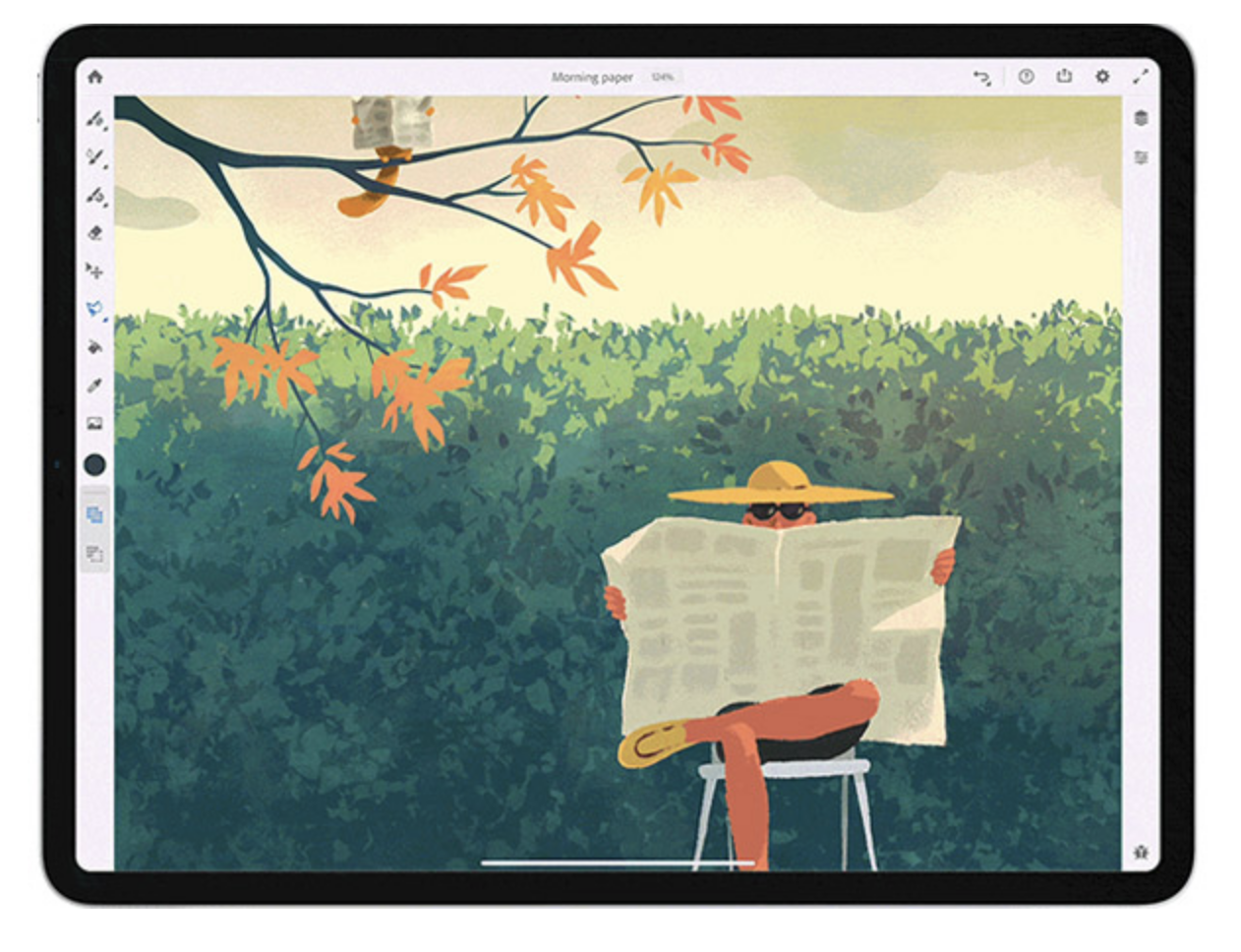
- Adobe Fresco combines drawing and painting tools, including brushes designed to imitate traditional media. It is available on selected devices, with features depending on the platform and plan.
- Clip Studio Paint is widely used for illustration, comics and manga. Its tools include inking brushes, panel features and options for creating animation.
- Affinity Designer is designed for vector and raster artwork, making it useful for illustrations, logos and other graphic design work.
Features, device support and pricing can change, so check each app’s current details before choosing one.
How to choose an app
Start by thinking about what you want to make. A painting app may be the best fit for expressive brushwork, while a vector app is often more suitable for clean shapes and artwork that needs to scale without losing quality. If you want to create comics, look for tools that support panels, speech bubbles and page layouts.
Your device matters too. Check that the app works with your operating system and, if you plan to draw by hand, that it supports your stylus. Pressure sensitivity and tilt recognition can make strokes feel more natural, but they are not essential when you are starting out.
It is also worth considering file formats. If you need to share work with clients, printers or other artists, make sure the app can export suitable files, such as PNG, JPEG, PDF or layered formats. Some apps use their own project format, so keep an eye on how easily your work can be opened elsewhere.
Getting started with digital art
You do not need expensive equipment to begin. Try a free app or a trial version, then spend time learning a few basic tools rather than trying to master every feature at once. Start with simple exercises: draw everyday objects, practise making confident lines, or create a small colour study.
Save versions of your work as you go, and use layers to keep your sketch, line art and colours separate. Shortcuts and custom brushes can speed up your workflow, but developing a regular drawing habit is often more valuable than collecting lots of tools.
More than just software
A digital art app is a means of making and refining ideas; it does not replace observation, practice or personal style. The best choice is the one that feels comfortable, supports the work you want to create and helps you keep making art. With a little experimentation, the right app can become a flexible studio wherever you are.
Six Benefits of Digital Art Apps
- Draw and paint anywhere on a compatible device.
- Experiment with colours, brushes and styles.
- Use layers to edit artwork with ease.
- Undo mistakes without starting over.
- Create work quickly with digital tools.
- Export artwork in formats for sharing and printing.
Drawbacks of Digital Art Apps
- Some apps require a paid subscription.
- Advanced tools can be difficult to learn.
- Digital artwork may depend on specific software or devices.
Draw and paint anywhere on a compatible device.
One of the biggest advantages of digital art apps is the freedom to draw and paint wherever inspiration strikes. On a compatible tablet or phone, you can carry your sketchbook, paints and brushes in a single device, ready to work at home, on the move or outdoors. With a stylus and an app that suits your style, it is easy to capture ideas, practise techniques and develop finished artwork without needing to carry traditional supplies.
Experiment with colours, brushes and styles.
Digital art apps make it easy to experiment with colours, brushes and styles without wasting materials or starting over. Try bold palettes, textured strokes or entirely different approaches, then undo changes or save alternate versions until you find what works. This freedom encourages creative exploration and helps artists develop a distinctive style.
Use layers to edit artwork with ease.
Layers make editing digital artwork simple and flexible. You can keep sketches, line work, colours and effects on separate levels, then adjust, hide or remove each one without disturbing the rest of the image. This makes it easy to try out different ideas, correct mistakes and refine details while preserving the original artwork.
Undo mistakes without starting over.
One of the biggest advantages of digital art apps is the ability to undo mistakes without starting over. If a line, colour or edit does not look right, you can quickly reverse it and try again, preserving the rest of your work. This freedom makes it easier to experiment, learn new techniques and refine an image without worrying that a small error will undo hours of effort.
Create work quickly with digital tools.
Digital art apps can help you create work quickly by putting useful tools in one place. Features such as ready-made brushes, shape tools, layers and colour palettes make it easy to develop an idea without starting every detail from scratch. You can also undo mistakes, duplicate elements and make adjustments in moments, helping you experiment freely and spend more time refining your artwork.
Export artwork in formats for sharing and printing.
Digital art apps make it easy to prepare artwork for different uses by exporting it in a range of formats. Save a high-resolution file for printing, create a smaller JPEG for sharing online, or export a transparent PNG for use in another design. This flexibility helps artists share their work across platforms and choose the format that best suits each project.
Some apps require a paid subscription.
Some digital art apps require a paid subscription, which can make them costly over time, particularly if you use several creative tools. Free versions may also limit access to brushes, features or file formats, so it is worth checking the pricing and what is included before committing.
Advanced tools can be difficult to learn.
One drawback of digital art apps is that their advanced tools can be difficult to learn. Features such as masks, blending modes, custom brushes and layer effects may feel confusing at first, especially for beginners. It can take time to understand how they work and how they fit into an artistic workflow, which may interrupt the creative process. Starting with the basics and exploring new features gradually can make the learning curve more manageable.
Digital artwork may depend on specific software or devices.
A drawback of digital art apps is that artwork can depend on particular software or devices. Some files are saved in proprietary formats that may not open correctly in other programmes, while certain features rely on specific operating systems, tablets or styluses. If an app is discontinued, a subscription expires or a device becomes outdated, accessing or editing older work can be difficult. Exporting artwork to widely supported formats and keeping backup copies can help reduce the risk.