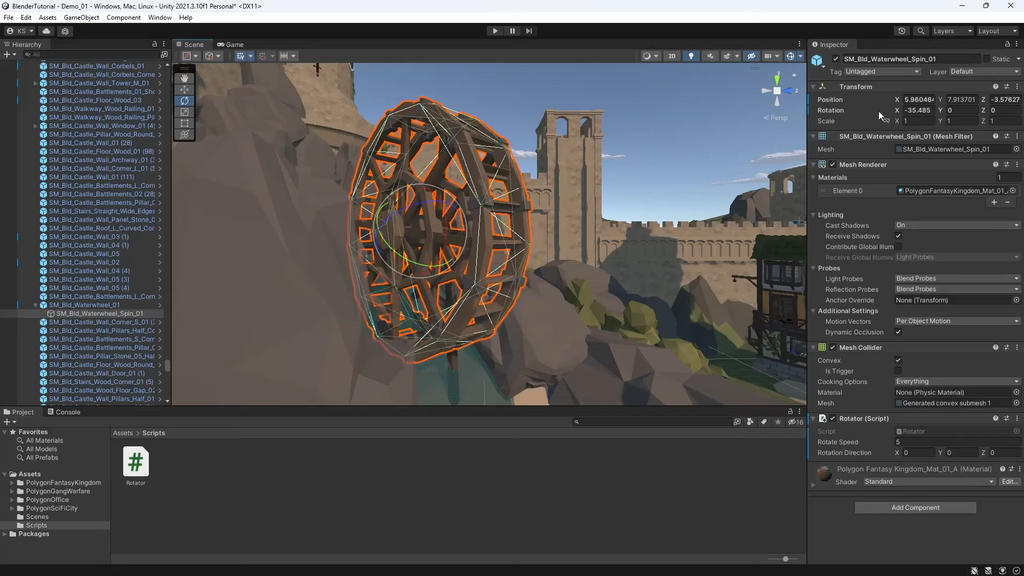
Unity Animation Software: A Guide to Creating Animated Experiences
Unity is best known as a real-time development platform for games, but it also includes a broad set of tools for creating and managing animation. These tools can bring characters, objects and environments to life in games, interactive applications, simulations and other digital experiences.
Rather than being a dedicated 3D animation package, Unity is designed to import, organise and play animation within a real-time project. It can also be used to create certain animations directly in the editor. This makes it particularly useful when animation needs to respond to player input, application logic or events in a virtual world.
What can Unity’s animation tools do?
Unity supports several animation workflows. Artists and developers can import animations made in external software, animate properties within Unity, or combine both approaches. The available tools include:
- Animation clips: Sequences of movement or changing values, such as a character’s walk cycle or a door opening.
- Animation window: A timeline-based editor for creating and editing keyframes on objects and their properties.
- Animator Controller: A system for organising animation states and defining how an object moves between them.
- Blend Trees: A way to blend between related animations, such as walking and running, based on values like speed or direction.
- Timeline: A sequencer for arranging animation, audio, video and other elements into cinematic or scripted sequences.
- Rigging tools: Tools for setting up skeletal structures and controlling character movement within supported workflows.
Working with imported animation
Many artists create detailed 3D models and character animations in specialist software, then bring them into Unity. Common file formats include FBX, which can carry models, rigs and animation data. Once imported, the asset’s settings can be adjusted to define its scale, rig type and animation clips.
For humanoid characters, Unity’s Humanoid rig configuration can map a model’s skeleton to a standard structure. This can make it easier to reuse compatible animations across different characters. Generic rigs are more appropriate for non-humanoid objects or custom skeletal setups.
Imported clips can be configured to loop, trimmed to a specific range or separated into individual actions. For example, a single source file might contain several movements that can be used as distinct clips in a project.
Creating animation inside Unity
The Animation window allows users to keyframe properties directly in the editor. A keyframe records a property’s value at a particular point in time; Unity interpolates between keyframes to create movement. This approach works well for objects such as doors, platforms, lights, cameras and interface elements.
Unity can animate more than position, rotation and scale. Depending on the component and project setup, animation can also control values such as material properties, colours and other object settings. This makes the editor useful for both visual effects and interactive elements.
Building interactive character movement
Character animation often relies on an Animator Controller. It contains states—such as idle, walking, jumping and falling—and transitions that determine when the character moves from one state to another. Parameters, including numbers, switches and triggers, can be updated by scripts or gameplay systems to control those transitions.
Blend Trees can make movement feel smoother by combining animations according to input values. For instance, a character can gradually transition from standing to walking and then running as its speed increases. With careful setup, this can create more natural movement than switching abruptly between clips.
Using Timeline for cinematic sequences
Timeline is designed for arranging events over time. It can coordinate animation with audio, camera shots, visual effects and other tracks. This makes it useful for cut-scenes, trailers, guided presentations and scripted moments in an interactive experience.
Unlike a fixed video, a Timeline sequence can be integrated into a real-time project. Developers can trigger it at a particular point and combine it with interactive elements, depending on the needs of the experience.
Strengths and considerations
One of Unity’s main advantages is the connection between animation and real-time behaviour. Animations can react to input, game state and code, and can be previewed in the context of the project. This is valuable for games, training simulations, architectural visualisation and interactive installations.
Unity also supports a range of platforms, allowing animated projects to be developed for computers, mobile devices, consoles and virtual or augmented reality, subject to the project’s requirements and platform support.
However, Unity is not a complete replacement for dedicated modelling and animation applications. Complex character modelling, sculpting, advanced rigging and detailed character performance are often better created in specialist software before being imported. Unity’s animation tools are most effective when used as part of a wider production workflow.
Getting started
A practical way to learn Unity animation is to begin with a simple object. Create a short animation that changes its position or rotation, then add it to an Animator Controller and trigger it through a parameter. From there, experiment with looping clips, transitions and Blend Trees.
For character work, start with a model that has a suitable rig and a small collection of clearly named clips. Test the animations in the project early, as scale, orientation and rig settings can affect how assets behave. Timeline can be explored once the basic animation workflow is familiar.
Conclusion
Unity animation software provides a flexible toolkit for bringing moving assets into interactive projects. Its key strengths lie in importing animation, controlling it in real time and connecting it to gameplay or application logic. For the best results, Unity is often used alongside dedicated tools for modelling and animation, forming part of a complete creative workflow.
Unity Animation Software: 8 Frequently Asked Questions
- What is Unity animation software used for?
- Can you create animations directly in Unity?
- How do you import animations into Unity?
- What is an Animator Controller in Unity?
- What is the difference between Unity’s Humanoid and Generic rig types?
- How do you make a character walk, run and idle in Unity?
- Can Unity animations be used in games and interactive applications?
- Do you need other software to create animations for Unity?
What is Unity animation software used for?
Unity animation software is used to create, import and control movement in games and other interactive experiences. It lets developers animate characters, objects, cameras and visual effects, then connect those animations to gameplay or user input. Unity can also be used to build cinematic sequences, simulations and interactive presentations, with animations created in the editor or imported from specialist 3D software.
Can you create animations directly in Unity?
Yes. Unity includes an Animation window where you can create animations directly in the editor by setting keyframes for an object’s properties, such as its position, rotation, scale or colour. This works well for simple movements, environmental objects and interface elements. For more complex character animation, you can also import animation clips from specialist software and manage them in Unity.
How do you import animations into Unity?
To import animations into Unity, drag the animation file—commonly an FBX file—into your project’s Assets folder, or use Assets > Import New Asset. Select the imported file in the Project window and review its settings in the Inspector. Under the Rig tab, choose the appropriate rig type, such as Humanoid or Generic, then apply the changes. Use the Animation tab to check and configure the animation clips, including their names, start and end frames, and whether they should loop. Once imported, the clips can be added to an Animator Controller and used to animate your characters or objects.
What is an Animator Controller in Unity?
An Animator Controller in Unity is an asset that organises and controls an object’s animations. It uses states to represent animation clips or Blend Trees, and transitions to define when the object moves from one animation to another. Parameters—such as speed values, triggers or on/off switches—can drive these transitions, allowing animations to respond to gameplay, user input or other events.
What is the difference between Unity’s Humanoid and Generic rig types?
Unity’s Humanoid rig is designed for characters with a human-like skeletal structure. It maps the character’s bones to a standard avatar, making it easier to reuse compatible animations across different humanoid models. The Generic rig is intended for non-humanoid characters, objects or custom skeletons; it does not use this standard mapping, so animations are generally tied to the specific rig they were created for. Choose Humanoid for character animation retargeting, and Generic when you need more control over a custom or non-human rig.
How do you make a character walk, run and idle in Unity?
To make a character idle, walk and run in Unity, import a rigged character and its animation clips, then assign them to states in an Animator Controller. Add parameters—commonly a speed value—and use transitions or a Blend Tree to move smoothly between idle, walking and running as the character’s movement changes. Your movement script or input system should update the Animator parameter, while the Animator handles the appropriate animation. Check that transitions are configured to avoid unwanted pauses, and test the animations alongside the character’s movement to keep the feet and motion in sync.
Can Unity animations be used in games and interactive applications?
Yes. Unity animations can be used in games and interactive applications, where they can respond to player input, user actions or changes in the experience. Animation clips, Animator Controllers and Timeline sequences can control characters, objects, interfaces and cinematic moments, making them suitable for everything from gameplay movement to interactive presentations and simulations.
Do you need other software to create animations for Unity?
No, you can create simple animations directly in Unity using its Animation window, but you may prefer specialist software for more complex tasks such as modelling, rigging and character animation. Tools such as Blender or other 3D packages can be used to make assets and animations, which you can then import into Unity. The right workflow depends on your project and the level of detail you need.